The Datahoarder's Toolkit
I touched on datahoarding in How to Use a Computer: Part VI, but I think it's important to revisit the topic. The reason is, we're facing an information purge over the next few years of unprecedented proportions; large websites being metred out of the internet by evangelist censors, individual articles and blocks of text being censored by billionaires and their lapdogs, and certainly the corporate feudal state running roughshod over centralised public archives. Decentralised data archives are part of the fediverse: rather than one monolithic Internet Archive, thousands of specialised archives stored in computers across the entire world; so if you're thinking "Ah, I'm [insert nationality]. I'm not going to be affected by whatever happens in America." Where do you think the datacentres are? Where do you think the heart of the internet is? Right now, it's ALL America. It doesn't matter what part of the world you live in, American data brokers serve most of your information. Plus, Americans are going to have it pretty rough over at least the next 4 years, so it would be a great help to us if you could start accumulating information too.
Fortunately, datahoarding is easy. All you have to do is download things, which you undoubtedly already do. While it's easier to keep hoards organised on a computer, the actual hoarding can be done even on a mobile device. In fact, sometimes it's better to use a mobile device because of the mobile-only nature of certain key websites, like Tumblr, X, and TikTok. I know I just called Twitter "X". To cut down on confusion, I'll be calling it that consistently throughout this document.
So, let's get started, shall we?
Table of Contents
Crucial websites
What to hoard
Tools
Basics of downloading
Storing your hoard
The intersection of preservation and piracy
Backing up physical media
Crucial websites
While it may be good to download things from other sites, these are the most crucial for hoarders and should be given first priority.
• X [x.com] Account required.
• Truth Social [truthsocial.com] Account required.
• Tumblr [tumblr.com] Account required.
• TikTok [tiktok.com]
• Facebook [facebook.com] Account required.
• FOX News [foxnews.com]
• CNN [cnn.com]
• Al Jazeera [aljazeera.com]
• AP News [apnews.com]
• YouTube [youtube.com]
• Internet Archive [archive.org ]
]
‣ Political tweets and social media posts via the Wayback Machine
‣ Software → Software Capsules Collection
‣ Software → CD-ROM Images
‣ Video → Television
The reason I've singled these websites out because of the sensitive nature of the information they contain. X still has old tweets from the Before Time where Elon contradicts himself about certain things, as well as reports from news agencies and individuals who debunk things that Elon and Trump have said or generally present them in unflattering light. Truth Social, being Donald Trump's personal Twitter surrogate, contains contradictory information from Trump himself about his opinions on certain things Elon has been espousing. Tumblr tends to be a dumping ground for all things relating to these and can be used more or less as a sieve. TikTok and Al Jazeera contain unbiased, non-zionist information about Israel's conquest of the Levant, and AP News tends to delete stories that their corporate sponsors do not agree with. CNN and FOX News also do this. Facebook serves as a snapshot of the alt-right brainspace from election to election, allowing future scholars to study the effects of fascist rhetoric on a wealthy country. The Internet Archive's presence here is obvious: the corporate feudal state will stop at nothing to shut it down, believing it to be a pirate database.
What to hoard?
Hoard data based upon your interests, as well as what you feel is crucial to the future of humanity. While, certainly, the evidence of Elon Musk's election tampering needs to be on every computer in the world, perhaps you're personally interested in Sega Master System games, or Victorian-era foraging guides, or 1950s American home cuisine. So, yes. Hoard data based upon your interests.
The big thing about datahoarding that you'll run into immediately is that there's a LOT of data in the world. The average human generates about 1024 MB of data per day and a lot of it ends up on the internet in one form or another. It's easy to get overwhelmed at what seems to be an impossible task, convinced that you can't possibly do anything helpful.
You're not God. You are not the saviour of all data in the world. You're never going to be able to preserve all the data you want to preserve, even if you worked for a hundred years.
However... you are not the only one doing this. Even though you may just be one person with one computer and 512 GB of storage space, there are hundreds of other people with their own computers and their own 512 GB of storage doing the same thing with different data. And, sure, there are also a few dozen people with several 16 TB desktop servers who automate their hoarding with userscripts. Just because you have less space doesn't make your work any less relevant. Let's say the doomsday scenario comes to pass and the FCC bans AlJazeera.com loading on any internet browser in the US. The only guy in town with a pro datahoarding rig suddenly suffers hardware failure and he not only loses his entire AlJazeera datahoard, but he also misses 12 stories that were published just before the connection went dark. You, on the other hand, who have been manually saving AJEnglish articles to your flashdrive for the past year still have an intact hoard, including the 12 stories he missed. Preservationists have to support each other; the more computers a file exists on, the more difficult it becomes for any monolithic anti-information group to censor it.
Tools
Now, let's look at the software you'll need to actually start hoarding.
LibreWolf. I know you more than likely use some fork of Chromium, but LibreWolf has some specialist developer tools that we're going to use. I'm not sure about this exactly, but I read somewhere once that only Gecko-based browsers are able to download videos without needing a go-between service like Cobalt. Being able to save a video just like a picture within the browser is far more efficient. Also, I should hope that you've been using uBlock Origin all this time, and Chrome doesn't support it anymore. LibreWolf doesn't have a mobile equivalent, so you should still use Firefox there.
SingleFile. Maybe what you need to save is an entire webpage with its multimedia elements intact. SingleFile is able to save webpages as a single HTML document, streamlining organisation. It works better on static pages, like social media permalink pages; rather than dynamic ones, like dashboards and news feeds. When you save a page with SingleFile, be sure to save any videos and audio files separately, since the process doesn't always work, especially with very large files.
DownThemAll. If you're faced with a large amount of files, you can create a download queue with DownThemAll. You can also set it to download all files of a particular type; such as all image files, or all audio files, or all archive files. The best thing about enqueuing files with the Download Manager is that you do not need to be on the webpage with the links in order for DTA to download them, making it extremely important for the Internet Archive.
cobalt. Some sites will not allow you to download their videos from the browser controls. In this case, use cobalt to nick the video from the source. It will work with most video hosts, including X and Facebook. If you're not sure about a video host, try pasting the link into the box and see if it can download it. If it can, hey that's great! If it can't, it'll return an error message. Youtube compatibility is spotty these days, but fortunately, that's what the next items are for!
FreeTube. (Computers only) Rather than going directly to YouTube, you can use FreeTube to bypass all of Google's advertising and trackware and go directly to the video. It also allows you to download the video file to your computer for offline viewing. If you have a link to a YouTube video, even if it has been shortened, you can paste that link into FreeTube's search bar to open the video without needing youtube.com itself.
NewPipe. (Android devices only) Does the same thing that FreeTube does, only on smart devices running Android.
Basics of Downloading
While most of us have been downloading things over the internet for almost our entire lives, there are some basic bits that may be confusing for newcomers. Even if you've been downloading for years, stay for this section. You might learn something new!
The Screenshot is the most efficient way to save pictures, large blocks of text, and webpages. On a computer, this is done by pressing the Print Screen key on the keyboard. This may be abbreviated in a number of different ways, including "Print", "PrtSc", and "PrntScrn". In laptops and some models of wireless keyboard, Print Screen may share a key with another feature, such as Insert or Delete. In this case, you may have to hold the FN key at the same time you press Print Screen in order to make it work. On phones and tablets, the process is different for each model; however, your device does have a native screenshot function that does not require an app to make work. You will most likely need to search the internet for it; for instance "how to take screenshots on samsung galaxy note8". On both computers and smart devices, you can open screenshots in an image editor to pare out irrelevancy.
You don't need to grab the entire screen to download just one picture. In most cases, you can simply save it directly. On computers, this is done by hovering the cursor over the picture and clicking the right mouse button ("right-clicking") to open the advanced controls, then selecting "Save image as...". On smart devices, the same can be done by long-pressing on the desired image and selecting "Save image to device". Sometimes, the website can be a little picky about right-clicking, in which case, you can press CTRL+I (the letter i) to view page information, then go to the "Media" tab and scroll through the content until you find the desired picture, then click "Save As..." above the preview. The same procedure also works with audio players hardcoded into the page by the web developer.
Saving entire webpages will require SingleFile. Right-click in the page and select "SingleFile > Save page with SingleFile" to save it. On picky websites, click the Extensions button on your Firefox toolbar (the puzzle piece) and click SingleFile to save the page. Wikimedia project sites have the ability to export pages as PDF, but as a matter of personal taste, I prefer to use SingleFile here as well, because it takes fewer clicks to save (the Export as PDF button is hidden away under Tools at the top of every page, which leads to a completely new page with another button to click to actually begin the export process). Also, Wikimedia's PDFs tend to be slightly larger than SingleFile's HTMLs, if storage space is a concern. Please note— when saving with SingleFile, you will need to save video and audio separately, as these cannot be encoded in Base64 and therefore cannot be saved with the rest of the page.
Usually, to save videos, all you need to do is right-click or long-press on it and select "Save Video as" or "Save video to device". However, there are some video hosts this won't work with; YouTube and X are examples. In this case, you'll need to involve an external tool, like FreeTube or cobalt. While FreeTube and NewPipe can accept YouTube video links (from the address bar on that video), cobalt will require a direct link to the video file. To obtain the link on a computer-based browser, right-click in the player and see if "Copy Video Link" or something similar appears. Some players will automatically copy the link just by right-clicking in the player. To do this on a phone, long-press on the player to get the same options. If nothing happens (i.e. you can't copy the video link in this way), hunt about the page, somewhere in the vicinity of the player for a button that will do the job. If you still can't find anything, press CTRL+U (computers only) to open the page source and get the link directly from the player code. Technically, at this point, it may be possible to simply paste the video link directly into your address bar to load it separately from the website, at which point you should be able to right-click and select "Save Video as". Since there is no iOS version of FreeTube or NewPipe, you can use cobalt to download videos on iOS devices.
Don't bother trying to download videos directly from commercial streaming services. In this case, you'll need to do it the long way around and use a freeware screen recorder. If the video you wanted to preserve has already been deleted, you'll need to search it down on a torrent aggregator, but that's beyond our purview just now.
Storing your hoard
Unfortunately, a well-used hard disk on your 10-year-old computer isn't going to cut it for storage. This is the bit where you're going to need to spend some money. Semi-pro datahoarders on Reddit will try to sell you a tape drive, claiming it has the longest shelf life of any other medium, and they might be telling the truth about that. However, the equipment is all highly proprietary and every tape manufacturer uses different encoding schemes. Your best bet here is either a USB hard disk drive (HDD) or a whole mess of flashdrives. Avoid solid-state drives for datahoarding, for 2 readily apparent reasons: 1, they're expensive, costing nearly twice as much as an HDD; and 2, they don't do well if data isn't being written to them all the time. Since We're talking about long-term data storage here (5+ years), an HDD is the best way to go. The spinning platter design has proven itself in the test of time (a hard drive from 1994 will still be readable 30 years on) and it will perform admirably provided you don't jostle it too much. If your computer has an optical drive, you can store smaller files on CD-R and DVD-R (just don't tell the Reddit set that you're doing it, you'll get laughed off the website).
DO NOT SAVE TO CLOUD STORAGE SERVICES!!
This is so important, I'm gonna say it again...
DO NOT SAVE TO CLOUD STORAGE SERVICES!!
It doesn't matter how decentralised or pro-data privacy the file host claims to be, the object of the game is to take files off the internet, not just jockey them about between servers. The inherent security vulnerability of saving private files on someone else's computer shouldn't be something we have to talk about, but that's the thing. If you stop thinking of "The Cloud" as an ephemeral part of subspace where files exist in a void until you call them back up again, and start thinking of it as someone else's computer, you'll start to realise just how stupid cloud storage actually is. "Oh, I swear I won't peek into your files," said the billionaire tech company with its fingers crossed behind its back, just before it dumps them all into their LLM, sells your pictures to Midjourney for a cool million, and tells the FBI that you have copyright-infringing material in your fanfic folder. Don't save to the cloud. Don't. I don't care how much of a premium your space is at.
The Wayback Machine
The Internet Archive's most celebrated function, you can enter a web address and it will show you all the snapshots that have been made of it across time. While using the Wayback Machine to save new webpages is a vital function in datahoarding and preservation, recent events demonstrated that just using it as an archive and then doing nothing else isn't good enough. The Internet Archive, including the Wayback Machine, went offline for a week in October 2024 due to a security vulnerability and a distributed denial-of-service attack, thereby preventing any new Wayback data being written and anyone accessing the data currently stored there. I'm not suggesting you ignore the Wayback Machine, I'm saying that it's only step 1 of a 2-step process, with the 2nd step being saving a local copy to your datahoard. Basically, use it like you would use Wikipedia while writing a school paper: mine it for references. But, just saving it to Wayback and walking away, thinking it's safe for all time? Don't do that.
The intersection of datahoarding and piracy
TL;DR: don't worry about it.
The most common argument against datahoarding and preservation is that it either promotes or is itself piracy. What is "piracy"? According to Wiktionary, "3. The unauthorised duplication of goods protected by intellectual property law." How broad a definition could you possibly get? The corporate feudal state has historically used the worst-faith interpretation of this, taking it to mean "not paying us money for access". If they had their way, growing your own vegetables instead of buying them from Dole would constitute piracy. Making your mum a Hanukkah card instead of buying a generic greeting from Hallmark would constitute piracy. Making home videos where a kid in the background is wearing an Iron Man shirt would constitute piracy. Actually, that last one has happened. Warner, Disney, and Nintendo's piracy bots roam YouTube like wolves and issue automated DMCA takedowns on videos that they think may be infringing on their copyrights.
The point here is that some giant corporation or another lays claim to everything that has ever existed and ever will exist, which is made easier now through the use of IP-distilling image synthesisers, like DALL-E and Midjourney. The world's copyright courts tend to go along with it because it's either too expensive for a defendant to mount an actual defence or it's too hard to make the distinction between piracy and preservation in a way that covers all possible use-cases. In general, I tend to take an "abandonment as public domain" view to preservation; if an individual or entity removes something from a public-facing data network that they were charging money for people to access, they are no longer seeking to profit from the sale of that data.
For instance, if the Walt Disney Company were to remove everything having to do with Phineas & Ferb from their streaming platforms, this would mean that they no longer intend to profit from it. At this point, it becomes abandoned, and preservationists are well within their rights to openly accumulate and trade heretofore pirated Phineas & Ferb content. In a more practical model, Nintendo discontinued the 3DS eShop service in March 2023, which, since the discontinuation of the physical Nintendo 3DS and its game cards and the shutdown of the DSi Shop, was the only remaining outlet for 3DS games and DSiWare. At this point, Nintendo effectively stated that they no longer sought to profit from the sale of any system, game, or downloadable software app for the Nintendo DS, 3DS, or New 3DS lines; forcing any further physical sales into the aftermarket realm and shutting out all official DLC channels. At this point, people who own systems in this line are well within their rights to jailbreak their systems; accumulate, install, and trade ROM images of DS and 3DS software; and instruct others on how to do it themselves.
I can't speak for the rest of the world, but in the United States, there is legal precedent under Sega v. Accolade (1992):
"[...]where disassembly is the only way to gain access to the ideas and functional elements embodied in a copyrighted computer program and where there is a legitimate reason for seeking such access, disassembly is a fair use of the copyrighted work, as a matter of law."
Essentially, the "legitimate reason" is continued use of hardware following the termination of its commercial life. Since the company have A, discontinued the entire product line; B, left no official avenues for continued access to it for those who already owned products in the line; and C, have no official venue for new users to access the product line; it becomes abandoned, therefore it can be lawfully preserved by third-parties.
Backing up physical media
I recently suffered a DVD failure on a well-used and well-loved copy of Shaun the Sheep series 2. Disc 2 of the set had some episodes on it that I always watch at Hanukkah, but both my computers and my DVD player refused to run it. Looking into the matter further, I found that adhesive bloom had set in, rendering the disc useless.
I talk a lot on this website and others about how important physical media is in this age of expensive streaming services, but the fact is that physical media of any kind is not infallible. Tapes stretch, discs become unreadable, pins come off game cartridges, diskettes get demagnetised, LP records get scratched. So, even though physical media is important, it's equally important to make computer-readable backups of it.
For legal reasons, I would admonish you to only make copies of media that you own. Do not go to your local library and check materials out to make copies of or go to whatever dregs of Redbox still exist and copy those DVDs. Why? Because making archival copies of someone else's media is piracy! Oh, no! 😱😱😱
A. Backing up DVD
Tools.
Optical disc reader
MakeMKV trialware
LOADS of storage space! (at least 1 TB)
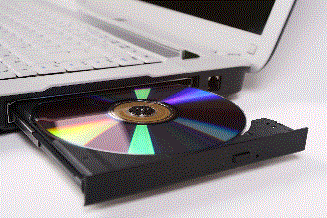
First, you cannot proceed if your computer does not have an optical drive. If your computer didn't come with one built in, an external OD that connects to a USB port will be fine, just make sure it has the ability to read DVD and Blu-Ray.
MakeMKV is a trialware program that lasts for 60 days unregistered and 30 days registered. Unlike other trialware, nothing has been throttled or turned off; it has all the capabilities of the commercial software, only with a limited time in which to use it. The countdown begins when you install the software. The program itself is quite easy to use; just put a DVD into the computer and click a few things. As the name indicates, the software backs up the selected DVD titles into MKV; a video container that is capable of holding the highest-available definition video, alternative audio tracks, and subtitle files, as well as preserve any predefined chapters. Roughly short for "Matroska video container", MKV can be opened by VLC media player.
The big problem with backing up DVDs is one of storage space. Depending on the length of the video and how many audio and subtitle tracks were saved alongside it, a single MKV can be gigabytes in size. The average 2-hour film can be as large as 3 GB, so you'll need quite a large hard disk drive to hold all that data. Really, you shouldn't go any lower than 1 terabyte here, with 4 TB being the ideal. When it comes to buying new hardware to store your MKVs, go with a USB hard disk drive (not a solid-state drive), rather than the aforementioned mess of flashdrives. This will make it easier to organise. I know that, dealing with large files like video, you might get tempted by larger amounts of storage—like 16-32 terabytes. Just as a matter of course, I don't recommend anything more than 2 TB because, in the case of catastrophic hardware failure, you won't be able to salvage most of your hoard at higher levels. Windows CHKDSK or the analogous Linux program will take about a day and a half to scan a 2 TB disk; I imagine it would most of 2 weeks to scan a 16 TB one.
B. Backing up Computer Software
Tools.
Software on CD-ROM, DVD-ROM, or BD-ROM
Computer running Linux Mint (easier)
Computer running Windows and a CD-ROM archiving tool (harder)
Optical drive

A little bonus about running Linux Mint is the OS's native ability to make copies of software on disc. While there certainly are programs for Windows that do this too— such as IMGburn, Alcohol 120%, and Daemon Tools Ultra— these are all specific to your particular use-case. And while Linux Mint's disc ripper is not infallible (any copy protection scheme post-SecuROM will prove too much for it), it'll go a long way to backing up that collection of Windows 98 software you inherited from your dad. For newer software, from about 2012 to until the physical/digital changeover, you will most likely need a disc archiver on Mint as well.
Linux Mint has a variation on the GNOME disk utility pre-installed. If your Linux computer doesn't have it, you can install it from the terminal. More details on this can be found at Addictive Tips.
Insert a disc into your OD and wait for it to mount. If the Disk Utility doesn't open automatically, open it yourself. Select the CD/DVD Drive and click the Options button (3 stacked bullets) at the top of the window and choose "Create disc image". On the next prompt, give the file a name and point it to the folder you wish to save it into, then click "Start". If prompted to do so, you may instruct the prompt to fill in invalid areas with noughts. Creating a huge great long sector full of garbage data is one half of the Safedisc/SecuROM copy protection scheme, so this will occur frequently if you are backing up game software. The ISO creation procedure will take a long time, but usually not nearly as long as the computer says it will. Repeat this process for all the discs you wish to archive.
There are too many disc archiving utilities for Windows to give instructions here. If you need help with it, look at the documentation for your particular archiving tool, or search the internet for "how to use [name of software]".
I should point something out... this procedure will not crack any software. If you back up something that uses Safedisc copy protection, you will need to run it on a computer that is capable of unlocking it. If the software has an install verification code, you will still need to enter that code when you install the software. This is not piracy, it's archiving.
C. Backing up Game Media
Tools.
Hacked game console
Game discs or cartridges
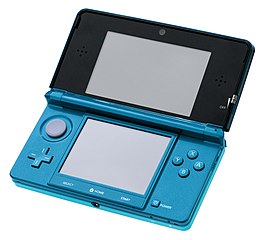
The first step in backing up your game media is having a game console that is capable of loading them. This methodology will work with most game systems made after 2006, but it may require installing a modchip into your console, depending on your particular use-case (so far as I know, modchips are only required on the Nintendo Switch, which is outside our purview just now). For legal reasons, I must insist that you do not attempt to modify your Nintendo Switch, Sony PlayStation 5, or Microsoft Xbox X/S, for as much insisting as can be done by someone who isn't in the room with you. For our test case, we will be using a launch-day Nintendo 3DS (pictured). This is for a few reasons. First, I have experience with this system, having jailbroken 4 systems in the 3DS line at this stage. Second, the procedure is well documented and most of the failure vectors have fixes available in case something goes wrong. Third, this is an easy system to hack, with the chances of encountering any problems reaching 0%. Fourth, Nintendo has abandoned this console, its immediate predecessor, and all games ever released for the DS, 3DS, and New 3DS lines, making this a fairly safe console to hack from a legal standpoint.
Now that you have identified the games you want to back up, you need to hack the system that plays them. For the Nintendo 3DS line, we need to go to this website and follow the instructions given there. A commonality between all next-gen systems is firmware revisions. This means that the hardware developer (viz. Nintendo, Sony, Microsoft) is able to transmit new data to all internet-connected systems. This is usually done to patch out security vulnerabilities, change the appearance of the system menu, or make changes to the kinds of software that the system can accept. This leads to a potentially-confusing amount of revisions, and each one often requires a different method for hacking into it for the purpose of installing custom firmware. There is a very real possibility, especially with systems that are currently being supported, that custom firmware will be detected by the developer and your system may be remotely reset to factory defaults, locked out of online gameplay, or disabled altogether. There are no confirmed historical cases of hardware developers bricking consoles to an unrecoverable state, but the copyright laws of the US, UK, and EU do hold that this is an acceptable action for these huge corporations to take if they want to. The only instance of a development company taking extreme measures against firmware hacking was an incident with systems in the Nintendo 3DS line in March 2023, where Nintendo tried to brick hacked 3DS systems by springing a surprise firware update after the eShop shut down. It took only a matter of days for the modding community to figure out how that happened and develop a way around the block. If you wish, you can usually revert your hack and restore your system to a stock condition after you've backed up your games... however, I think you'll find that unnecessary and entirely undesirable.
When you hack your system, it will often install a host of tools that are designed to help you customise your experience more; such as download services that can download and install new utilities without needing a computer to act as a go-between, file organisers, and programs that let you change configuration settings. If you're just now hacking your Nintendo 3DS, that tool is called GodMode9. This is the program we need to open in order to create a backup of the currently-loaded 3DS game card.
There is no legal ramification to creating archival copies of your own software. The company won't ever know you're doing it unless you tell them so, and it will ensure that you can continue using your lawfully-purchased game even in the case of media failure. Say you accidentally drop your game card copy of Pokémon Ultra Moon into your coffee one day as you're switching games out of your 3DS and the liquid seeps into the card and fouls up the NAND chip or corrodes the connectors. Say your launch-day disc copy of Luigi's Mansion has become scratched beyond recognition after years of getting clamped into your GameCube and will no longer load on your Wii. Say you lost your copy of Banjo-Tooie because you moved so much when you were a kid. These are all perfectly valid reasons for having backups of your games and hacked hardware. In the United States anyway, software backup falls under Fair Use thanks to Sega v. Accolade (1992), as mentioned above. This is also why game ROM websites insist that you only download games that you own or owned physical copies of... and why publishers are trying to phase out physical media altogether. For our purposes here, I'm also going to say that, if you find ROM copies of games that you downloaded from a game DLC service, such as Nintendo Virtual Console, Microsoft Xbox Game Pass, or Google Play, you're entitled to those as well.
D. Backing up Audio
The tools you need for saving audio to your computer are different, depending on what kind of audio you plan to save. In most use-cases, you're going to save local copies of music you listen to on music streaming apps, such as Spotify and Apple Music. With smartphone makers' tendency toward eliminating standard audio ports, it's a little more complex than just connecting a patch cable (or AUX cable) to your device and letting the analogue loophole run into Audacity than it was when I wrote my guide on ditching Spotify back in 2023. If you're lucky enough to have a device with an audio output, you can follow my guide on the subject without modification. However, if you don't, then you will need a Bluetooth speaker with a headphones port. At that point, the How to Playlist guide applies to the rest of the procedure.
The same principle applies to recording audio from a purely analogue source, such as cassette or LP record. Audacity has a dedicated hiss and pop remover to smooth out some of the natural stylus noise from vinyl record playback, as well as a Nyquist-based noise removal algorithm. Neither of these will give CD-quality audio to your 40-year-old audio cassette, but it should at least make it less noisy.
Talking of music CDs, Windows and Linux Mint both have native CD-ripping abilities; Windows through Media Player, Mint as part of the kernel. In either case, your computer will need an optical drive, so if one was not built into the machine, you will need to connect one to the USB port. While, technically, you can also use the analogue loophole to record from a dedicated CD player, having the computer rip the CD directly will take less time and eliminate any interference from unshielded patch cables and skipping. The CD ripping procedure is pretty user-friendly and can be done without needing to read any instructions. The only thing that might trip some people up is that you will need to supply the metadata yourself. Title, artist, date, genre, that sort of thing will need to be added manually, either on a track-by-track basis or with a music organiser such as MP3 Tag Editor.
HOME