How to make your own playlist WITHOUT Spotify or YouTube
Since I made a blog entry about this, I got a message on Tumblr about how to make a playlist that doesn't require being connected to the internet to listen to. No more intro: let's get into it.
Mobile phone method
Go to the Computer method.
There are two ways to make a private playlist; one that uses a computer, and one that uses an Android mobile phone and a handheld digital voice recorder. Since computers are rather more scarce now, we'll cover the mobile method first, beginning with the necessary supplies.
1. Your Android phone
2. Analog patch cable (AUX cable)
3. Handheld digital voice recorder
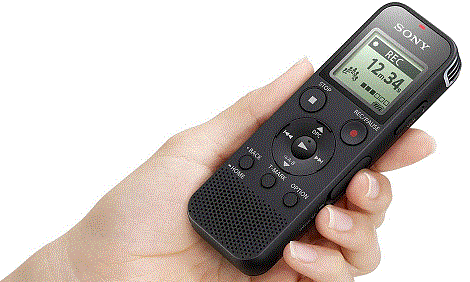
To be clear, a digital voice recorder is a standalone device that performs the same function as your voice recorder app. I swear by my Sony ICD-PX470; you can use a microSD card to expand its storage space fiftyfold, and it has discrete ports for headphones and microphones. It also has an MP3 player function and the ability to move files you record into different folders, so you can use it like a 2005-style MP3 player. This isn't a sponsored message, it's just me talking (I don't think they could afford to sponsor me anyway).
Also, this method only works with Android phones for the reason that Apple iPhones and Google Pixels do not have sound ports. There is nowhere you can physically attach a patch cable to the phone because these huge corporations would prefer you buy overpriced Bluetooth earphones. While it is possible to record from certain brands of Bluetooth speakers, I personally have no experience recording this way. The methodology for recording from these kinds of speakers is probably similar to the instructions here, but I don't know, so I'm only recommending Android phones.
Step 1.
Find some music you want to record. I know I said you didn't need YouTube or Spotify... well, I was wrong. We do need to involve them at this stage, just so you can get some music onto your MP3 player.
Step 2.
Conduct a volume test. Turn your phone's volume down to minimum (one click above 0) and connect up your patch cable, putting the other end into the microphone input on your recorder. Press Record on the recorder and Play on YouTube or Spotify, then let the song play into the recorder; you won't be able to hear anything, but you'll see the seek bar move and the input indicator flash on your recorder, so you can be assured that something is happening. For this test, you don't need to record the entire song, just the loudest bits; this is to ensure that you aren't putting more audio into the recorder than it can handle (this is called "clipping", as the processor has to "clip off" the waveform spikes to fit it into the buffer). Once you're done, press stop on the recorder and connect up a pair of headphones to it, then play your recording back. For safety, turn the volume on your recorder down to minimum and increase it gradually during playback to a comfortable level; this is to see if the recording worked. If the quality is not up to your liking—perhaps there's too much low-fi MP3 jangle or something—adjust the recording settings on your recorder, then delete the previous file and conduct the test again. Do this as many times as you need.
Step 3.
Now it's time to record for keeps! Using the same methodology as Step 2, record an entire song onto your recorder. If you're recording a playlist, stop the song before the next one can play so you don't end up recording more than 1 song to a file (you can do it this way, but it's harder to organise). Repeat this step as much as you like for as many songs as you like, then listen to them in blissful privacy, without giant multinational corporations selling your listening history for a swift quid.
NewPipe.
Since you're using Android, you can also use NewPipe to download audio (and video) directly from YouTube. This will allow you to create a private playlist on your phone, which you can either transfer to your recorder or not.
It's a bit easier to archive music using a computer, as there's less guesswork about volume levels and you have greater control over filenames and folders than you have in the Mobile Phone method. Here is what you'll need...
1. Desktop computer running Windows 7, 8, or 10
2. Audacity
3. CD-R discs, USB flashdrive, or SD card (optional)
You'll only need item 3 if you intend to listen to the playlists you make on other devices. Burning music to CD will allow you to play it on standalone CD players and in computers with optical drives. Otherwise, you can just plug your voice recorder or your mobile phone's charging cable into your computer to transfer files to the device directly.
Step 1.
Find some music you want to save. Unlike a mobile phone, you can also download archive files from the Internet Archive, Zophar's Domain, and other websites to construct playlists from huge stores of free music. Also, computers tend to be compatible with a greater amount of audio filetypes than a phone is: FLAC, AAC, M4A, OGG, that sort of thing, and Audacity can be used to convert these into a mobile-friendly format like MP3. If your musical tastes lie more inside the mainstream, that's what YouTube and Spotify are for. They have regular websites you can access on your computer, apart from just mobile apps, that you can log into to access your playlists there.
Step 2a - Recording from the Internet
If using Spotify, YouTube, Soundcloud, or another web service, run Audacity and change the Recording Device to either Windows WASAPI or Stereo Mix. If using stereo mix, increase the microphone gain to 95% and increase your computer's master volume if desired. Click Record in Audacity, then click Play on the web app, and let the song stream into Audacity. When the song is finished, click Stop on Audacity. If the song appears to be too soft, select the entire waveform by pressing CTRL+A on your keyboard, then Effect > Amplify... and raise the volume the recommended amount.
Rather than "Save As...", which will save the file as an Audacity project file (AUP format), select File > Export Audio... to save as player-readable audio. If exporting as WAV or MP3, you'll be asked to give the file metadata about contributing artists, title, album, and so on. If saving as WAV, you won't be able to assign metadata outside Audacity, so do it now. If saving as MP3, you can give it metadata at any time once the file is saved.
Step 2b - Ripping an audio CD
The best thing about using a computer to make playlists is the ability to copy music from prerecorded audio CDs. Though Windows 10 and 11 have lost the ability to natively rip CDs, Windows Media Player on Windows 7 and 8 still can. Otherwise, use VLC media player, ImgBurn, or AnyBurn as a CD ripper. While WMP occasionally has delusions of grandeur and will not rip CDs with certain DRM schemes on them (basically anything from charting artists released from 2007 onwards), it will pose no problem for third-party software, and you'll have that CD copied in no time.
Step 2c - Recording from an analogue source
While this is somewhat less common, it is also possible to record from a cassette, 8-track tape, LP record, or other media. Simply connect an analogue patch cable to the headphone output on the playback device to the microphone input on your computer, switch Recording Devices in Audacity to Microphone, and let it play as though you were recording from YouTube. The only caveat here, obviously, is that you need to have a device capable of playing the media you want to record from; such as a tape player or LP turntable.
Step 3.
Now that we have music files, we can do something with them! How to proceed depends upon what you want to do with the audio. In general, I recommend saving your files to a USB flashdrive, just so you don't need to clutter your main hard disk with them. If you want to play your playlist in a CD player, such as a boombox or a car stereo, use a blank CD-R disc to burn files to. Windows has this ability natively, so it requires no special software.
Whatever you do with it, you can feel a sense of superiority over the corporate feudal data-hogs, in that you don't need them anymore. You've outfoxed them by cutting their data collection out of the picture with physical media and locally-stored music files!
--14 October 2023--
HOME