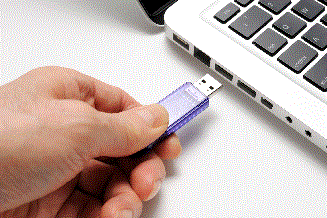
Linux on a Stick refers to a Linux operating system that boots from a piece of removeable media. Typically, USB flashdrives are used for this purpose, hence "on a stick". While the majority of users do this to diagnose and correct problems with Windows PC's, you can also use this method to have an entire alternative operating system that your computer runs instead of Windows on a temporary basis. In this guide, I'll be variously referring to this as "Linux stick", "Boot disk", or some variant thereof.
While you can use a USB hard disk drive, DVD-R, or SD card to make a Linux boot drive, we'll be using a flashdrive here. Please note that the drive must be blank! If there are any files stored on the drive that you wish to save, back them up before continuing.
Using Windows, format the flashdrive to erase all the data stored on it; we discussed formatting in Part 8. Next, go to Linux Mint's website and download one of the available versions of the operating system. Xfce is better for live sessions from the boot stick or for machines with low-end specifications (such as the barebones refurbished computers I've been recommending).
Linux Mint recommends using Etcher to create the boot disk, but you can also use Rufus if you prefer it (or if you run Windows 7 or 8; Etcher will not run on anything older than Win10). Whichever you prefer, you'll need to run it as an Administrator on Windows 10.
The last thing you need to do before continuing is to verify the SHA-256 checksum of the ISO. This can be done manually by copying the hash from the Linux Mint website into Notepad, then using 7-Zip's checksum generator to get the hash from the actual file. Right-click the Linux Mint ISO file and select "CRC SHA", then "SHA-256". Paste the SHA-256 hash that 7-Zip gave you onto the line below the hash from the Linux Mint website and go along the line, comparing the code. If ANYTHING does not match, delete the ISO you downloaded and download it again from a different filehost.
Insert the formatted USB flashdrive into an open port on your computer, then run Rufus or Etcher.
Follow the instructions given on either the Linux Mint installation tutorial (for Etcher) or this wikiHow article (for Rufus) to create your Linux Mint boot disk. Etcher uses a mostly graphical interface, while Rufus works more like a traditional Windows application with drop-down boxes and that sort of thing; either way, the process is not confusing and won't take more than 3 steps. Rufus has a lot of options relative to Etcher, so use the default settings if it starts getting confusing. Just remember that nothing you do here will ruin anything.
Wait for Etcher or Rufus to complete its work (it will tell you when it's done), and that's all. You now have a Linux Mint boot disk.
For this next bit, you will need to be able to access your computer's BIOS menu. Search the internet for "accessing bios on [computer make and model]". For instance, I want to find out how to access BIOS on a Lenovo ThinkPad T430; I would search for "accessing bios on thinkpad t430". The reason for BIOS is that we need to change the boot device order so we can elevate the USB ports to a higher priority than the computer's hard disk. If you're not certain how to do this, go ahead and search for that next: "changing boot order on [computer make and model]".
Either write down or print the directions, then turn off the computer (not just "Restart", but actually shut it down). Leaving the flashdrive in the USB port, turn the machine back on and enter BIOS. Everything should be clearly labeled, with persistently-onscreen instructions on how to navigate through the menus with the keyboard (mice will usually not work). Find the settings for the boot order; it will show a list of devices that the system will try to boot an operating system from, listed in order from first to last. The devices will typically be shown by their internal names rather than an abstract of what the device is—in other words, a hard disk would be called something like "TEAM T253A3512G SCSI Disk Device" instead of "Hard disk drive", so you may have to sort of read between the lines to figure out what everything is. Fortunately, the internal names of USB devices tend to contain the name of their manufacturer, making it easier to identify. Moving a device up in the list will increase its priority; essentially, what needs to happen is the USB drive needs to have a higher priority than the hard drive.
 Do not change ANYTHING ELSE except the boot order!
These settings all control how the motherboard interacts with the hardware installed on it. Changing settings in BIOS without understanding their function may cause the computer to stop working, and certain settings cannot be changed back if altered! The boot order can be changed back, but there really isn't any reason to.
Once the boot order is changed, save your changes and exit BIOS. Your computer may shut off at this point, or it may proceed with startup. Obviously, if it turns off, turn it back on, leaving the flashdrive in the USB port.
The first view you'll have of Linux Mint is the archetypal Linux terminal, full of esoteric status reports about the system hardware. You'll probably see stuff like "test failed" or "insufficient whatever" on this screen, but unless it throws a specific message about a critical error preventing it launching, it'll start up in about 5-10 seconds. Just be patient.
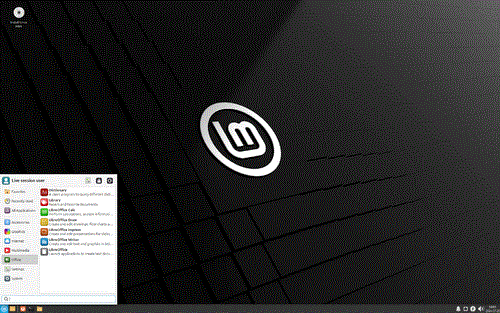
Once you see this screen, congratulations! By all established metrics, you are now a computer genius!
Live session vs. install.
Booting into and using Linux from the stick is known as a "live session". You will not be able to install software or effect any permanent changes to the operating system or any of its included programs during a live session. Any files you create will need to be saved to removeable storage in order to avoid being deleted when the session is over. Fortunately, Linux Mint comes with an array of useful software, including Firefox, LibreOffice, and an MS Paint workalike called Drawing, allowing you instant access to all the privacy and open source goodness that Linux has to offer. Any computer you can change the boot order of, you can use your Linux stick instead of the machine's native operating system. Any devices connected to the computer can be used by Mint, except you will need to manually log into your internet access point. Wireless printers may also prove to be a problem. You never need to install Mint onto a computer if you don't want to.
However, if you want to truly unlock Linux's full potential, you should install it as an operating system on the computer. Mint makes it easy, with an "Install Linux Mint" icon right there on the desktop during the live session. There are 3 available options for installation: OEM install for computers without an operating system, multi-boot install that allows you to partition the computer's hard drive and install Mint alongside whatever OS the host computer has, and overwriting the machine's native OS with Mint. Each option has a time and a place, but the one you'll probably want is multi-boot. Specific details on each type of installation can be found in Mint's installation guide.
Advantages to Live Session Linux.
The most obvious advantage is privacy. In general, Linux distributions will not require you to connect to the internet to receive useless updates and transmit marketing data. Moreover, the software that comes pre-installed on distros like Mint are all privacy-focussed. The only way anyone is going to be able to see what you're doing on your computer during a live session is if they're watching over your shoulder.
Another is security. If you're like me and you've been hanging on to Windows 7 this long after its support cycle ended, there's hardly any software left that still supports it. This includes Firefox. Rather than blindly hunt about for a Firefox fork project that promises to continue supporting Windows 7, only to be shut down when its development team all graduate university and forget about it, mainline Firefox is still safe to use on 64-bit Linux. This way, you can carry on using Windows 7 for everything except the internet, then boot into live-session Linux to use Firefox.
Or, you're using a low-end Windows 10 or 11 machine and you're tired of Windows Update constantly monopolising resources whenever you connect to the internet. You can use Windows for everything you normally use it for, and Linux for the internet.
Disadvantages to Live Session Linux.
The biggest disadvantage here is that you won't be able to install new software. Also, any settings that you change in the existing software will reset to default the next time you boot; so, if you tend to use a lot of Firefox addons, you'll need to re-install and configure them every time you start a live session. Talking of Firefox, the browser is locked into that one single version that came with Mint and cannot receive security updates. Unlike Windows, which Microsoft locks into update cycles to wear your computer down and force you to buy another one, Firefox updates are genuinely beneficial.