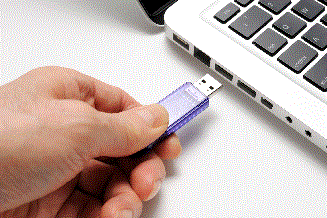
While not storing all of your files on Drive C (your computer's main hard disk) is a good thing, there are many things that can go wrong with a piece of detachable storage. This isn't to say that all detachable storage devices are bad and will fail as soon as you plug them into your computer (if they do, then that's on the manufacturer and you should return it to the store at that point), but the cycle of entropy comes for everything, including computer hardware. There is no such thing as a hundred-year medium when it comes to data storage, but if you observe some very simple maintenance on your storage media, you can increase its life to approximately the length of your own.
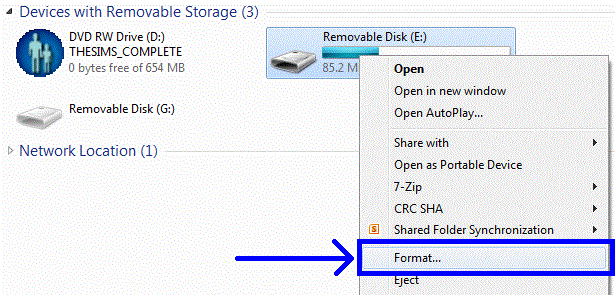
First, have Windows reformat a drive before you use it. You don't necessarily have to do this with new storage, as in something you just bought from Office Depot and took off the blister pack 3 minutes ago; but drives that you've had sitting around for a while that you want to repurpose for other uses. For instance; you have an 8GB USB flashdrive you bought in elementary school to store your CollegeHumor memes in and you now want to use it to contain all of your word processing files. Insert the drive into your computer and open your This PC or My Computer folder, then right-click the drive icon and select "Format...".
On Linux Mint Xfce, it is not necessary to completely reformat the drive. In this case, simply open the directory, select all files and folders except the folder called "System Volume Information", then right-click on one of the files and select "Delete" (do not press the "Delete" key).
Windows users: it is important to know that formatting the drive will delete all data present on the drive. So, if you want to keep those 8 years worth of memes, create a new folder somewhere else on your computer and move them into it. Otherwise, you won't need to change any of the formatting parameters in the window that opens when you click "Format...", you can just click the button on the bottom of the window to begin the process and clear the drive. Windows is smart enough not to delete the files that the manufacturer put into the protected area of the drive that tell computers what kind of device it is, so it will continue to work as intended after the reformat.
Next, unplug your detachable storage device when you aren't using it. Oh, sure, it's perfectly simple to just set it and forget it, leaving it in your computer at all times, but it isn't recommended. Power surges do happen, so does malware, so does accidental data deletion. Your computer won't accidentally delete data, but you might, and undelete tools won't work on flashdrives or SD cards. There are various things that can happen inside the computer, over which you have no control, that may corrupt or otherwise lock the data on the drive. They're not very common, certainly, but it's better to disconnect the media when you're done with it rather than gamble that there won't be a transient power surge that overloads your flashdrive the next time you turn your computer on. As for the disconnect process; you used to need to tell Windows XP that you were disconnecting a device so it could terminate all of its file archiving activities on that drive before you destabilised the system by unceremoniously yanking the device out of the port. That isn't necessary anymore. You can unceremoniously yank the device out of the port and Windows won't care. If any of the device folders are open, they'll close. If any files that are stored on the device are open in programs, they'll stay in temporary storage until you either return the device to the port, save the file to a different directory, or close the file without saving it.
When you store your detachable media, put the SD card back in its case, retract the USB jack back into the flashdrive, put the cap back onto the flashdrive, put the DVD-R into a jewel case or back on the spindle. This will prevent dust, dirt, small insects, skin oil, and whatever else getting onto the connectors or the data surface and causing them to decay more quickly.